Screenshots

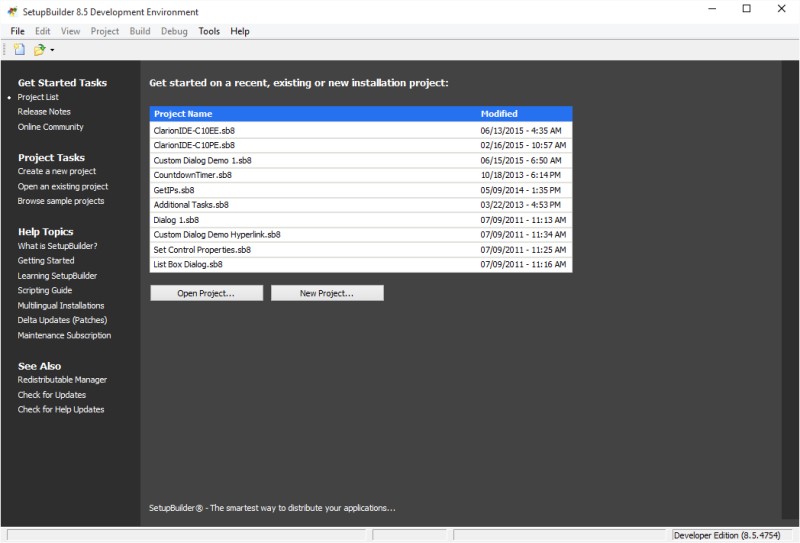
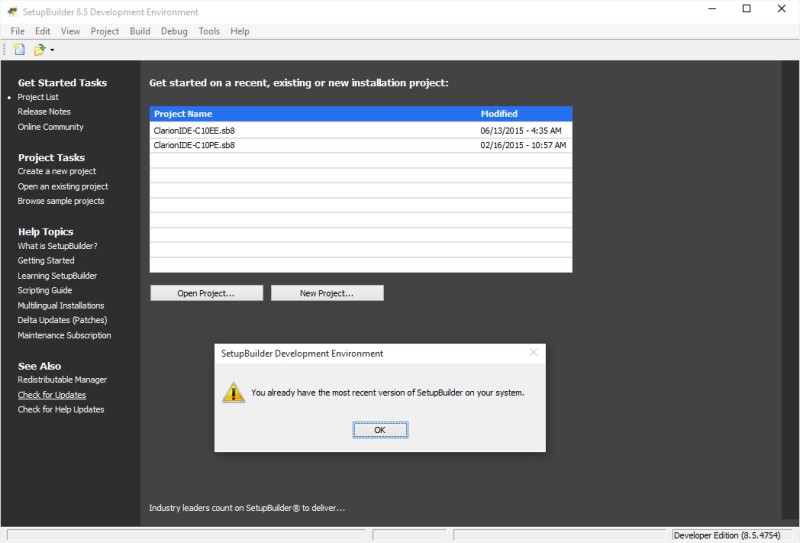
By default, SetupBuilder will present you with the "Get Started" page which provides users with quick access for launching recently opened projects, creating new ones, or learn more about various aspects of installation creation. If you have an existing project you can simply select it from the list of available projects on the start page. To remove items from the project list, please right-click the item and select Remove from the popup menu.


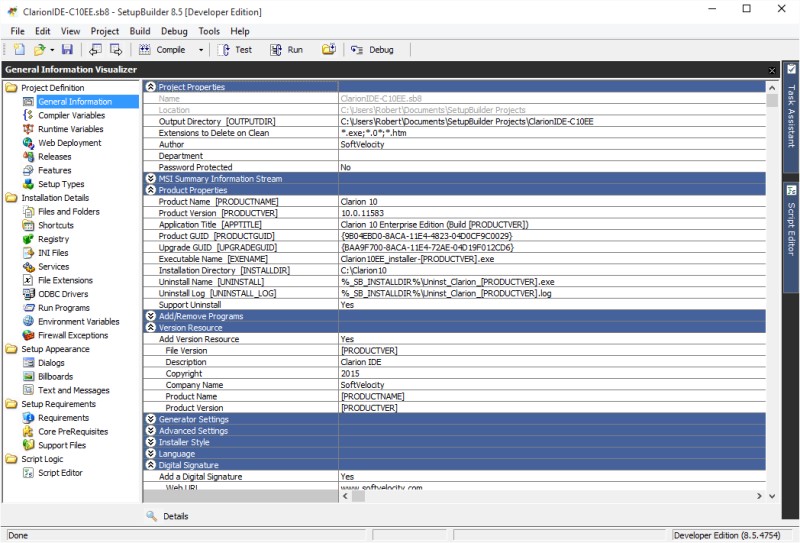
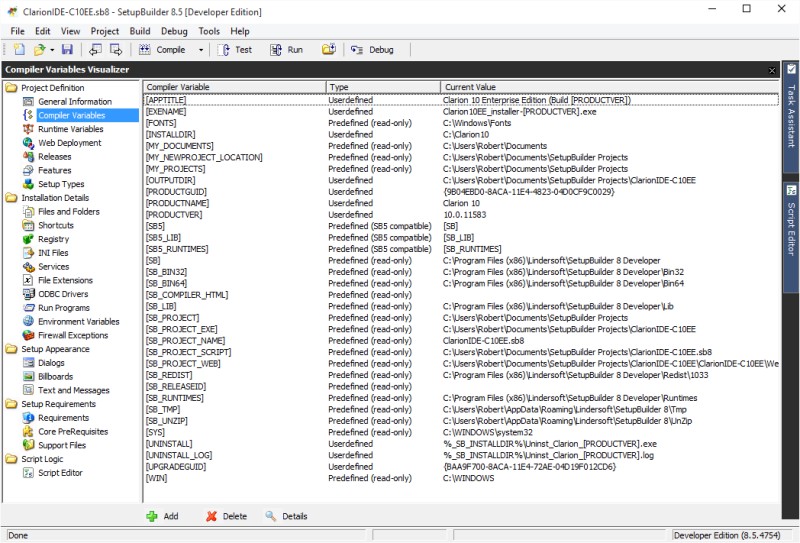
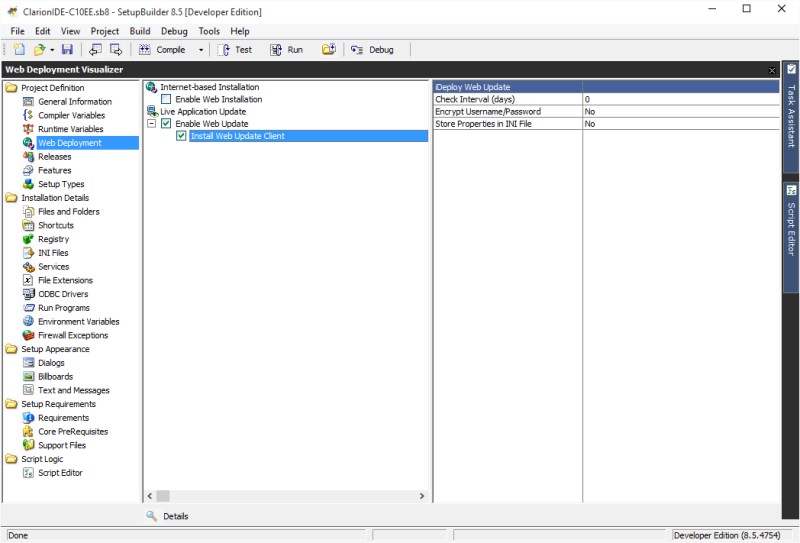
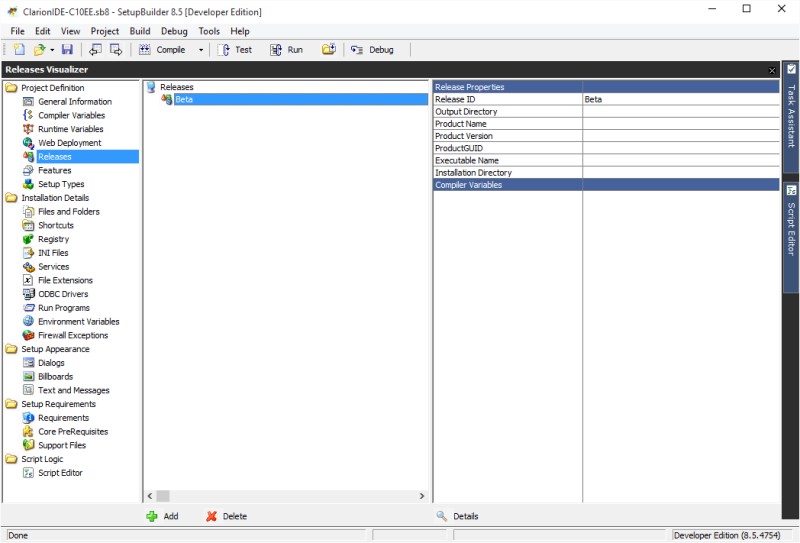
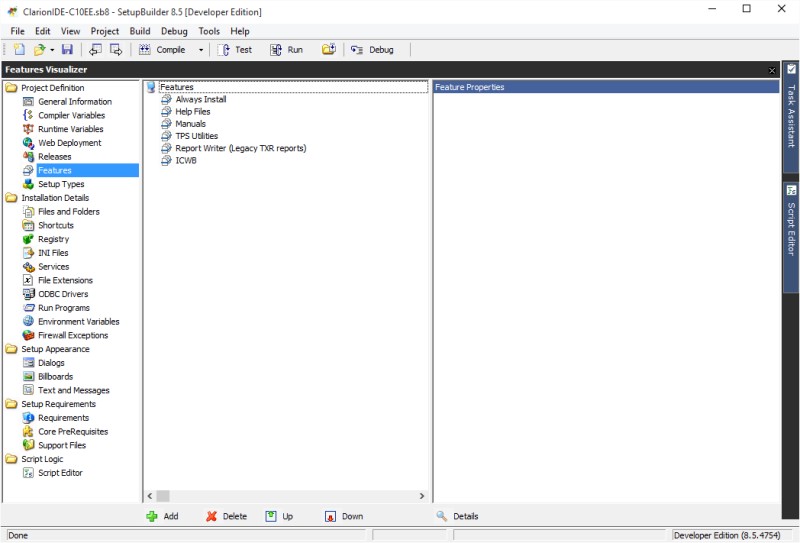
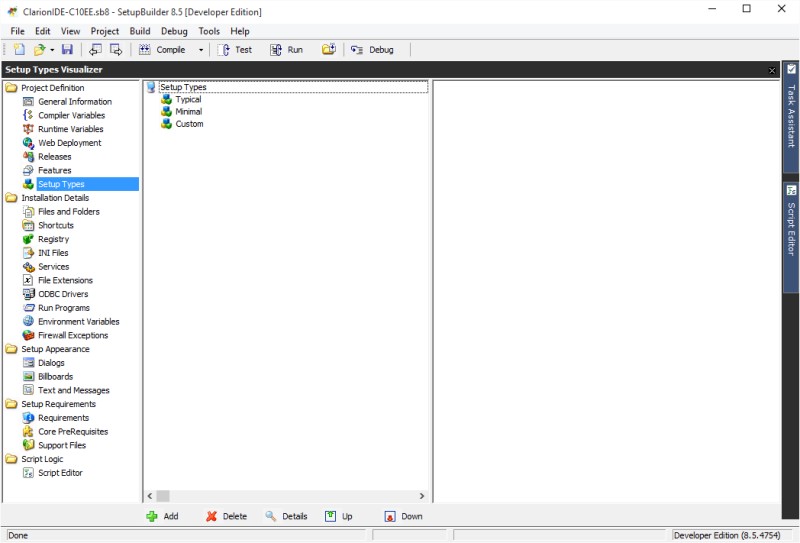
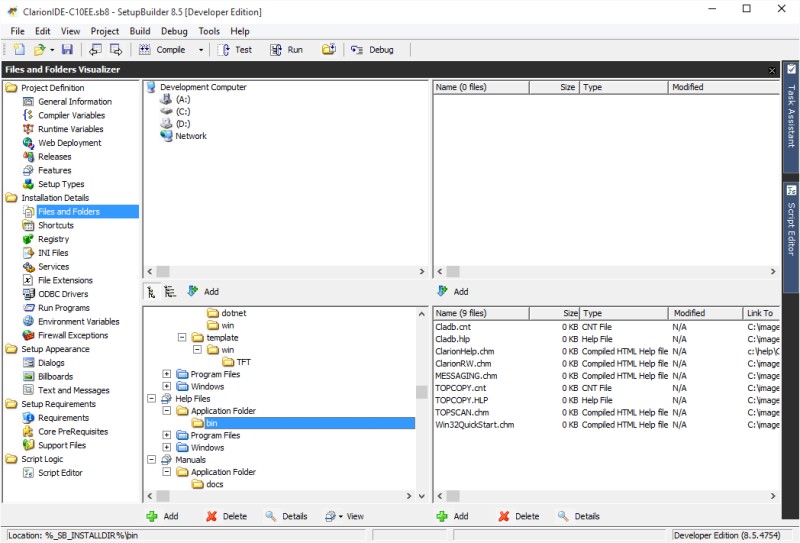
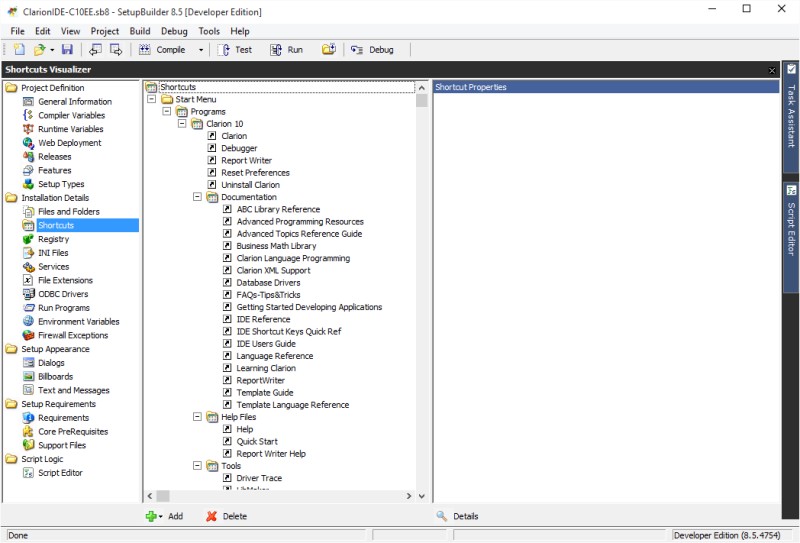
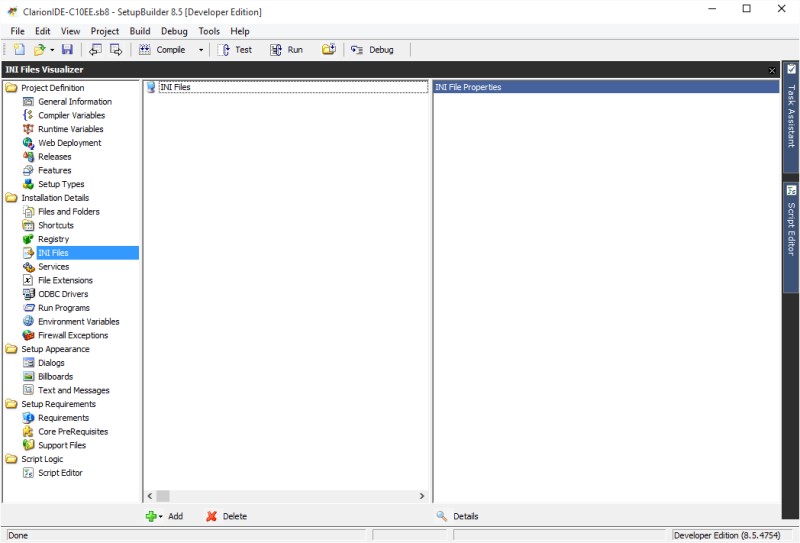
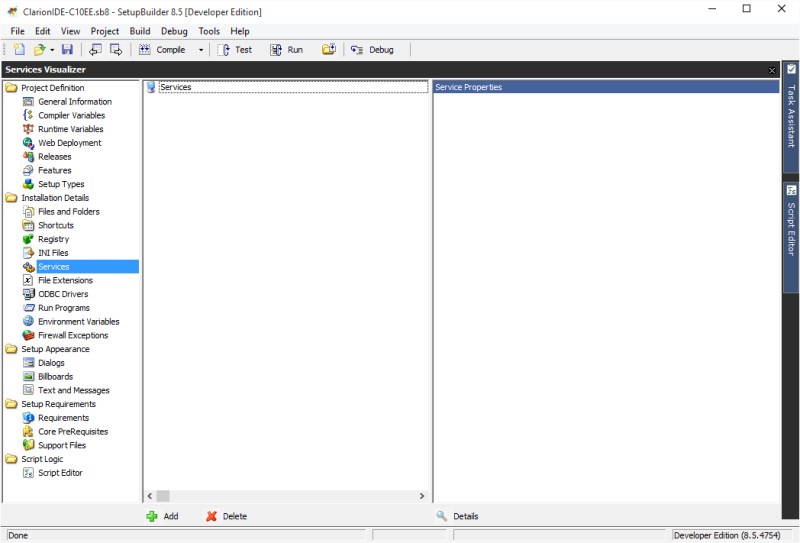
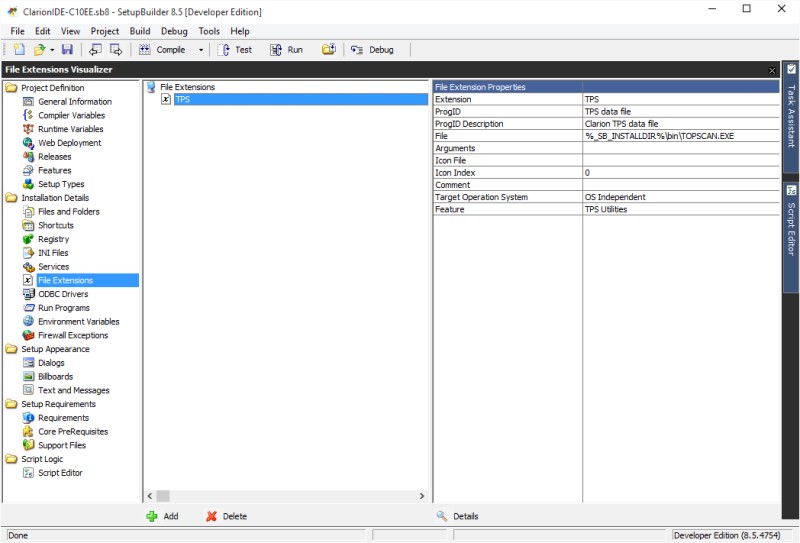
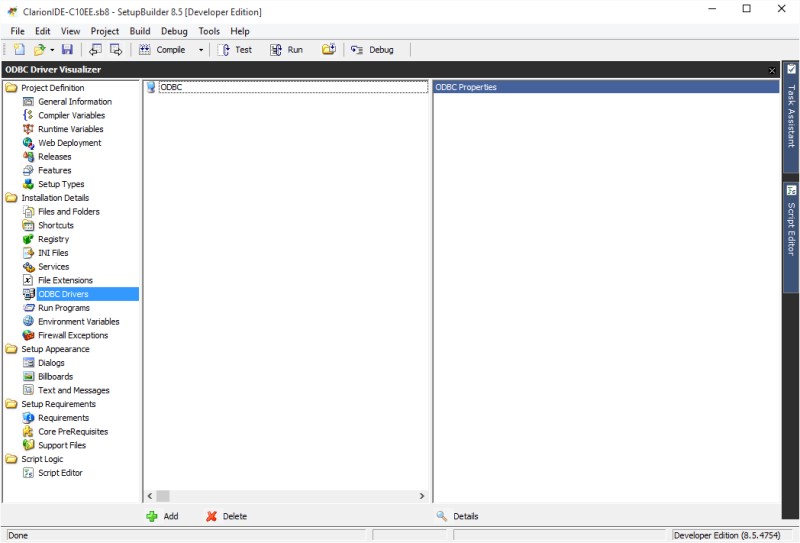
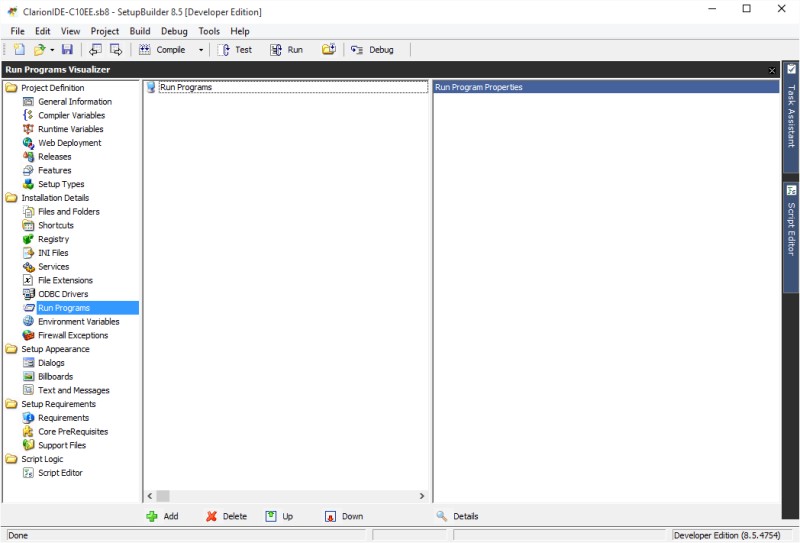
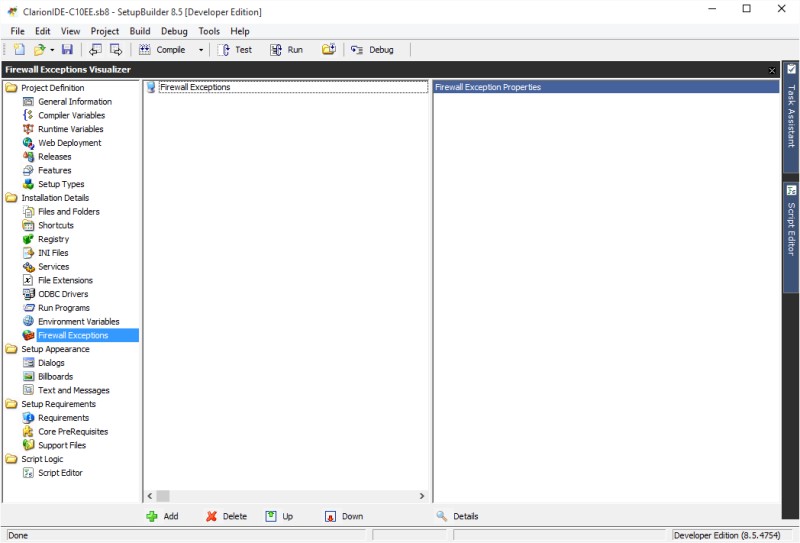
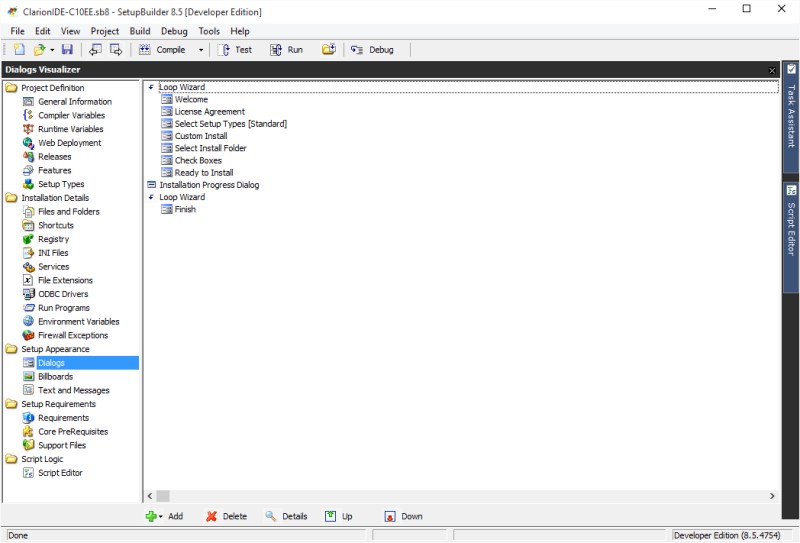
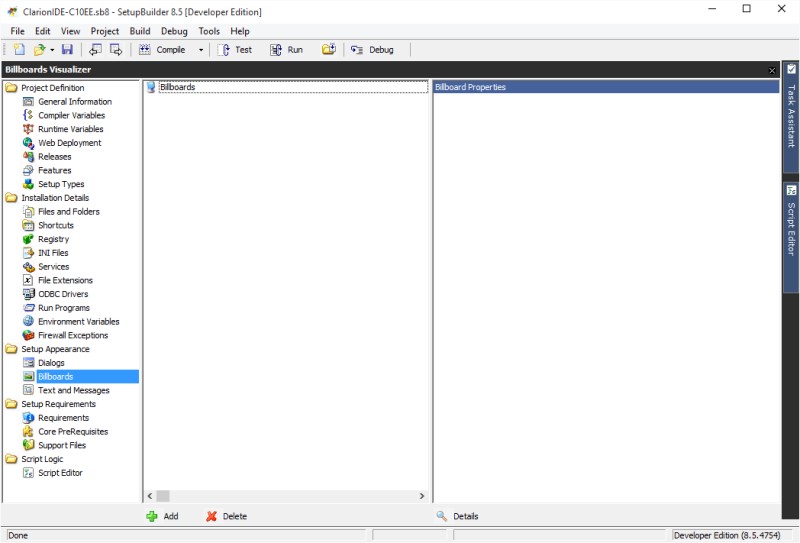
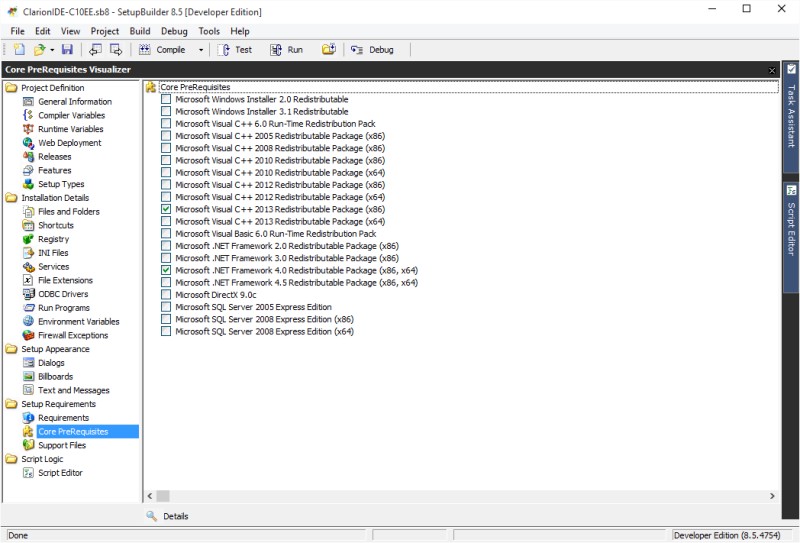
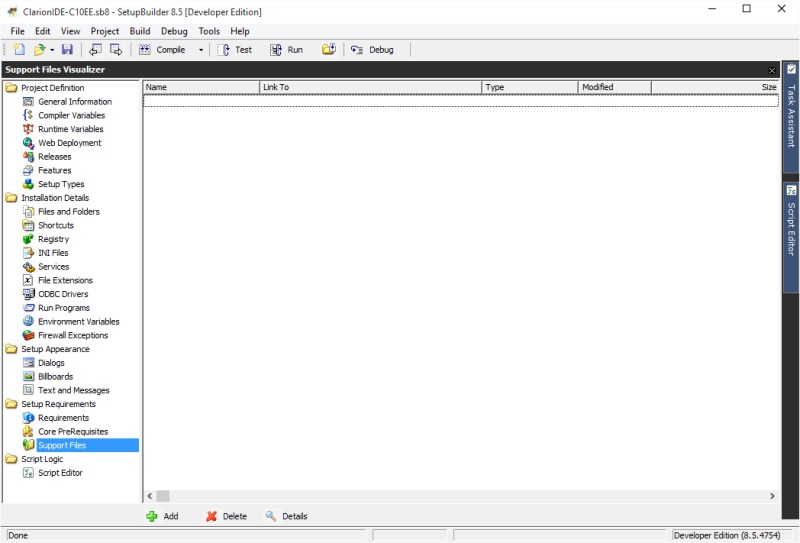
In its Visualizer mode, SetupBuilder presents the developer with a series of choices, and modifies the underlying script automatically. This is great for letting you focus on what you want to do, rather than on the mechanics of doing it. The Visualizer offers a user-friendly visual development environment that does not require knowledge of a script language. It allows you to use a point-and-click interface to create and manage installation projects based on your business needs.
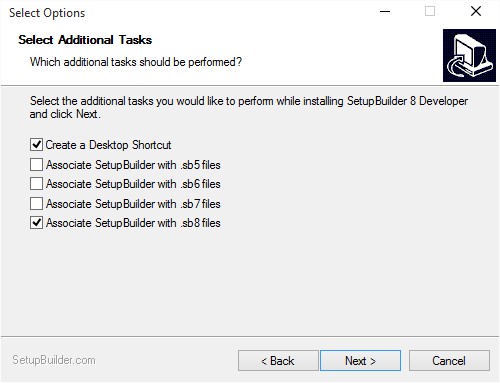
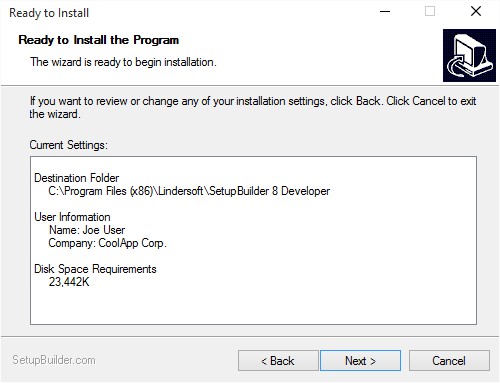


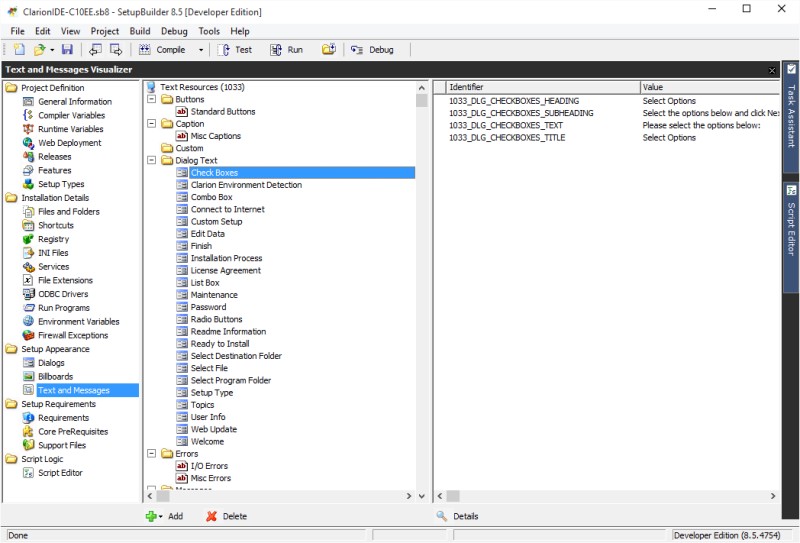
The Text and Messages Visualizer lists all of the dialogs and error messages that could be displayed during the setup process. You can customize all of the text that displays in your setup. SetupBuilder Developer Edition even supports multilingual installation packages. An installation package may contain up to 29 languages simultaneously.
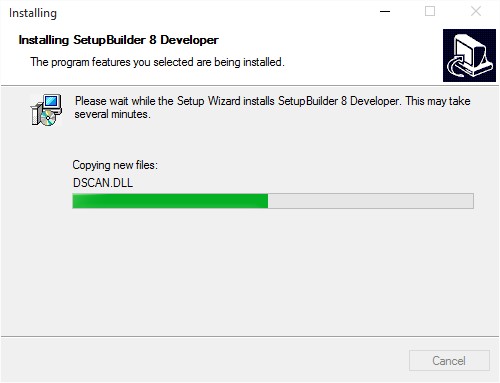


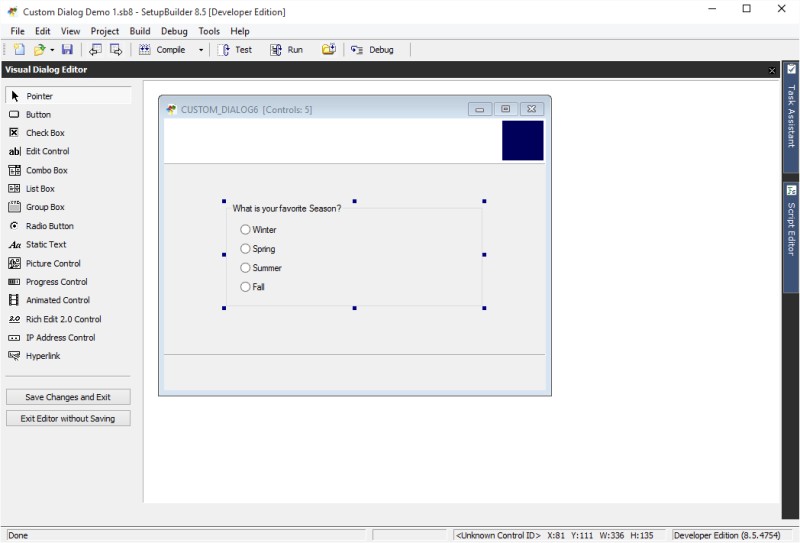
SetupBuilder Developer Edition provides a Visual Dialog Editor (VDE) for quickly customizing the user interface. You can use the VDE to create new dialogs from scratch for your SetupBuilder application. It lets you visually design dialogs and add items such as static text, text edit fields, graphics, checkboxes, radio buttons, push buttons, combo boxes, list boxes, and more.


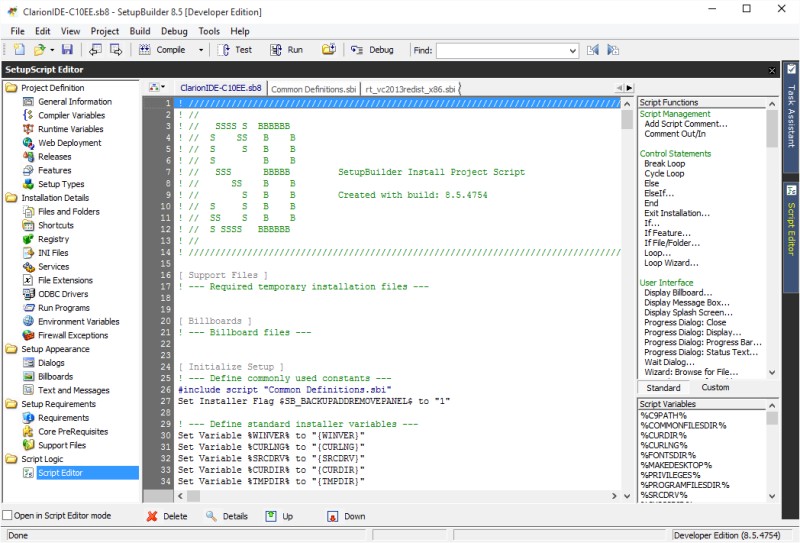
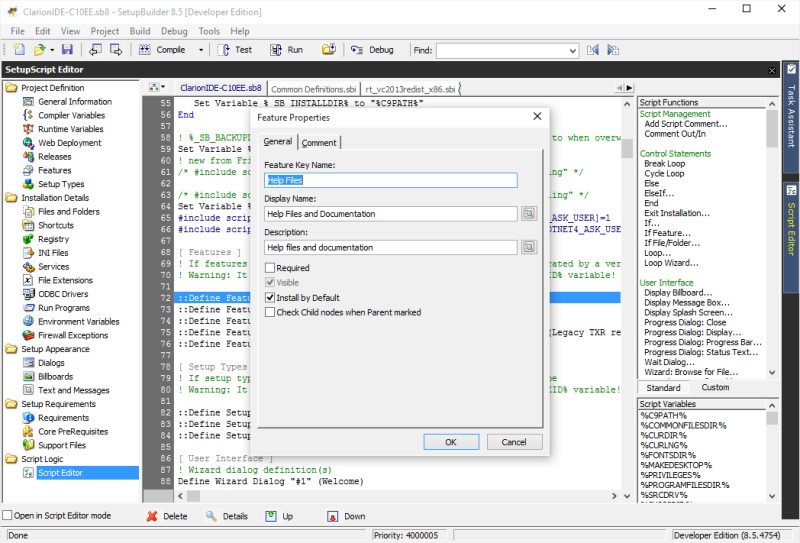
SetupBuilder doesn't force you to choose between a fast, easy-to-use, wizard-based interface and a scripting language; both are provided. The interactive interface generates scripts that you can modify in the script editor, or you can write the entire installation using the scripting language if you need to.


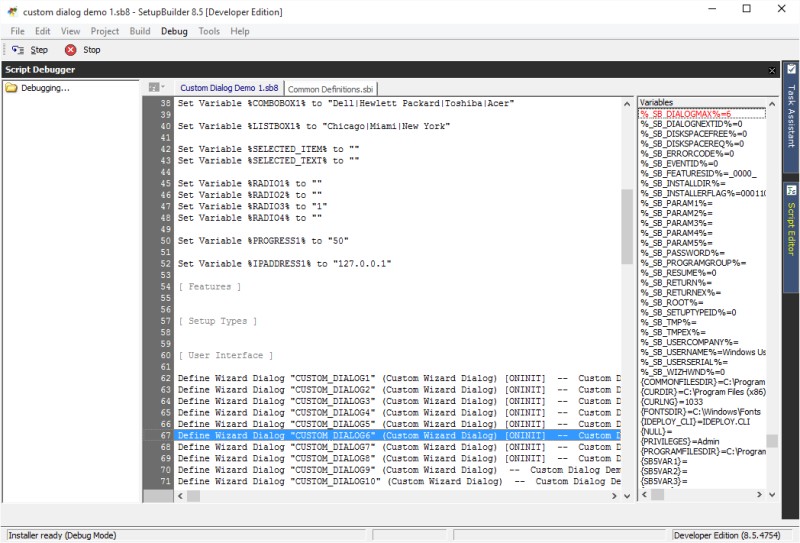
SetupBuilder Developer Edition includes an integrated debugger for analyzing more complicated installation scripts. The debugger allows you to step through execution. A panel on the right of the script window lists all script variables defined and their current values at all times, essentially playing the role of a simple watch/immediate window.